That shift is not about one flashy new feature. It is about accumulation: enough small, unglamorous capabilities piling up inside Settings and Windows Security that the case for installing extra utility software, just to keep an everyday PC running smoothly, has gotten noticeably weaker.
From "install a cleaner" to "open Settings"
For years, the default assumption among Windows users was that the operating system left messes behind — temporary files, orphaned update caches, a Recycle Bin nobody emptied — and that cleaning them up was somebody else’s job, usually a third-party app’s. Storage Sense, which has quietly existed in Windows for close to eight years, was Microsoft’s first real answer to that: an automated background process that clears out things like Recycle Bin contents, temporary files, and Downloads clutter on a schedule you set.
It’s worth being precise about what it does out of the box, though. Storage Sense is off by default, and even when enabled, its default behavior is limited: it targets temporary files and the Recycle Bin, while Downloads and cloud-synced content are left alone unless you explicitly configure it to touch them. Windows may switch it on automatically if a drive runs critically low on space, but that’s a fallback, not the normal state. In other words, it’s an opt-in convenience feature that can be tuned to be aggressive — not a silent background eraser working on everyone’s files by default.
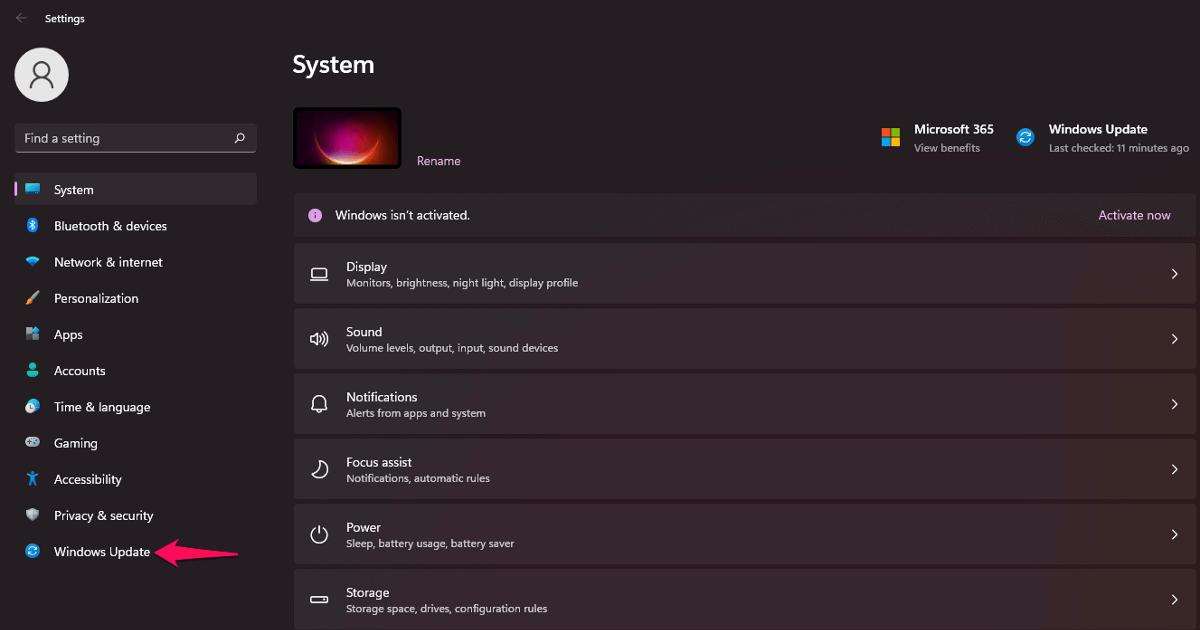
Where Storage Sense stops, Disk Cleanup and the broader Storage page in Settings pick up. Disk Cleanup handles the leftovers Storage Sense doesn’t, like old Windows Update files and Delivery Optimization data used to share update files between devices. And the Storage section in Settings now gives users a visual map of what’s actually consuming space — apps, temporary files, other user accounts, individual folders — plus the ability to redirect where new files are saved, something that wasn’t available in earlier versions of Windows.
Startup bloat and security, brought in-house too
The second long-standing complaint about Windows PCs was startup slowdown: every app installed over the years leaves a little piece of itself running at boot, and those pieces add up. Third-party "startup optimizer" tools built entire product categories around fixing exactly that. Task Manager’s Startup apps tab now does much the same job natively, letting users disable specific programs from launching at boot, complete with impact labels that flag which ones are the heaviest.
Security followed a similar arc. Windows Security — built around Microsoft Defender — now includes cloud-based threat intelligence, memory scanning, tamper protection, phishing and network protection, and Smart App Control, all active without a paid subscription or a separate install. That’s a meaningful change from the Windows of a decade ago, when installing a third-party antivirus was treated as a mandatory first step on any new machine.
What moved where
| Maintenance need | Old third-party approach | Windows 11 built-in tool | What it actually covers |
|---|---|---|---|
| Junk file cleanup | Dedicated "PC cleaner" apps | Storage Sense + Disk Cleanup | Temp files, Recycle Bin, update leftovers; Downloads/cloud only if configured |
| Disk space visibility | Third-party disk-analyzer utilities | Storage page in Settings | Visual breakdown by app, file type, and user |
| Startup slowdown | Startup optimizer apps | Task Manager’s Startup tab | Disabling apps at boot, with impact labels |
| Malware protection | Paid antivirus suites | Windows Security / Defender | Real-time scanning, phishing and network protection, tamper protection |
A pattern, not a single feature
flowchart TD
 A[Separate cleanup apps and antivirus] --> B[Storage Sense and Disk Cleanup added]
 B --> C[Centralized Storage settings]
 C --> D[Task Manager startup control]
 D --> E[Windows Security as default protection]
Seen this way, Windows 11 isn’t adding features so much as absorbing a category. What used to be a fragmented market of small, single-purpose utility apps has been folded, piece by piece, into the settings menu and the security stack that already ship with the OS. That’s a familiar move in software history: platforms tend to swallow the utilities built to patch their own gaps, once those gaps become common enough and the fix becomes standard enough to bundle. For Microsoft, it also means fewer reasons for a new PC owner to go hunting for third-party downloads in their first hour with the machine — and fewer moments where a stranger’s app gets a foothold on a freshly set-up system.
Where the built-in tools stop being the whole story
None of this means specialized software has become pointless. Power users managing multiple drives, IT administrators overseeing fleets of machines, or people who want granular control over exactly which cache entries get purged still have reasons to reach for dedicated tools that go deeper than Microsoft’s defaults. The built-in options are aimed squarely at ordinary, everyday maintenance — not enterprise-grade endpoint management or advanced forensic cleanup.
What has genuinely changed is the starting point. For the routine stuff — clearing clutter, taming a slow boot, keeping basic protection running — a Windows 11 user’s first stop is increasingly Settings itself, not an app store search. That’s a quiet but real shift in how much work an operating system is now expected to do on its own, and it’s reshaping what the market for "PC maintenance software" even looks like.