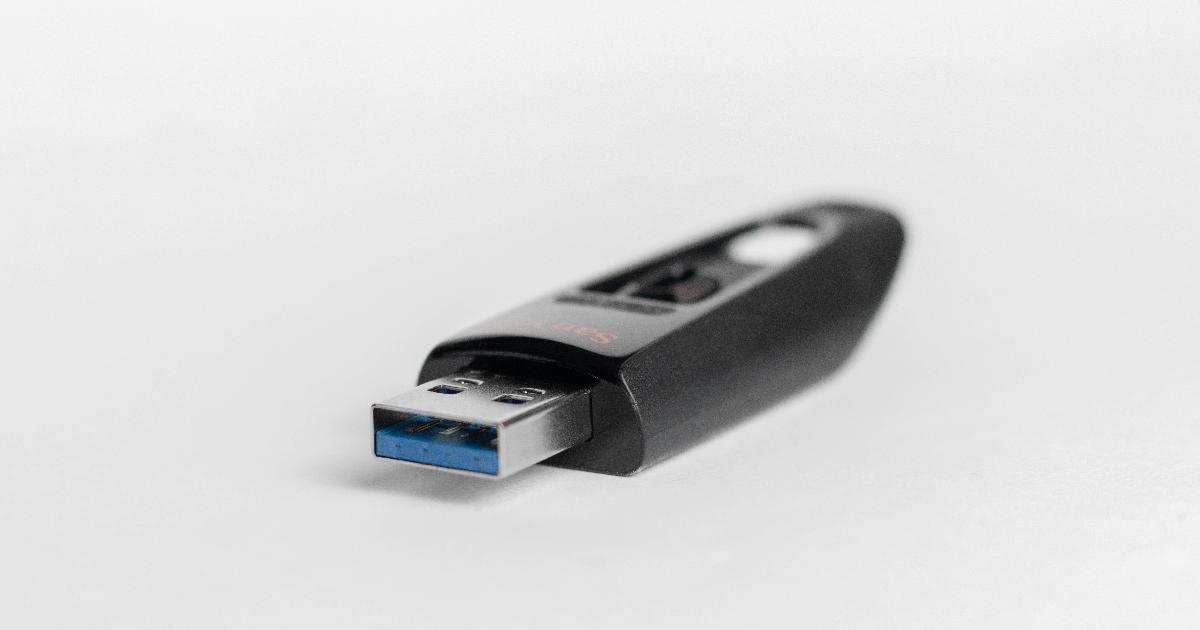
That story is a useful entry point into a question a lot of Windows users never quite settle: is a recovery drive actually worth making, given that Windows already has recovery tools built in? The honest answer is that it solves a narrower, more specific problem than most people assume — and understanding exactly what that problem is makes the small upfront effort easier to justify.
What a recovery drive actually rescues
The first thing to clear up is what a recovery drive is not. It is not a backup of your documents, photos, or game libraries. Even with the option to include system files checked, the tool only copies what Windows needs to repair or reinstall itself — not your personal data. Microsoft’s own guidance is explicit about this: the recovery media doesn’t include personal files, and a separate method like File History or a dedicated backup tool is needed for that.
So if a recovery drive doesn’t protect your files, what does it protect? In most failure scenarios, your files were never actually at risk — a botched update usually leaves the storage itself untouched. What’s genuinely at risk is the working configuration of Windows: your installed applications, saved settings, license activations, driver tweaks, and every small adjustment accumulated over months or years of use. Rebuilding that from scratch is what a full reinstall really costs you, and it’s measured in hours, not minutes. In the case above, the recovery drive turned that ordeal into roughly a ten-minute repair session.
Why the built-in recovery path can let you down
Windows is designed to catch its own failures. After a few unsuccessful boot attempts, it’s supposed to drop automatically into the Windows Recovery Environment (WinRE), a separate troubleshooting mode that runs outside the normal desktop and offers tools like Startup Repair, Safe Mode, and update rollback.
The catch is that WinRE normally lives on the same drive, and depends on the same boot configuration, that a bad update might have just damaged. If the boot files are corrupted or the recovery partition itself is affected, that automatic fallback can simply fail to appear — which is exactly what happened in the scenario that prompted this discussion, where the on-disk Startup Repair ran and reported it couldn’t fix anything. A USB recovery drive sidesteps that fragility because it boots independently, from its own media, without relying on the potentially broken environment sitting on the internal disk.
Three tools, three different jobs
It helps to lay out the three related concepts side by side, since they’re often confused for one another:
| Tool | Boots independently of the main drive? | Protects personal files? | Main purpose |
|---|---|---|---|
| Built-in Windows Recovery Environment (WinRE) | No — lives on the system drive | No | First-line automatic repair after boot failures |
| Recovery drive (USB) | Yes | No | Independent fallback to repair or reinstall Windows if WinRE is unreachable |
| Full backup / system image | Depends on where it’s stored | Yes, if configured to include them | Restores actual data and a specific saved state, not just the ability to boot |
Seen this way, a recovery drive occupies a specific middle ground: it doesn’t guard your data the way a backup does, but it doesn’t depend on the damaged system the way WinRE does either. It’s an independent layer whose only job is preserving your access to repair tools.
A layer, not a strategy
It’s worth being clear-eyed about the limits here too. Microsoft notes that recovery media isn’t a fixed, one-time asset — it snapshots the Windows build at the moment of creation, so it’s recommended to recreate it periodically, and its behavior can be affected by later platform or security changes, including a Secure Boot revocation update Microsoft has flagged as potentially impacting recovery drives made around that time. None of this makes the tool unreliable so much as it underlines that it needs occasional upkeep, not a "set and forget" mindset.
A recovery drive also isn’t a substitute for an actual backup discipline. The well-known 3-2-1 approach — three copies of your data, on two different types of media, with one kept offsite — is still the relevant answer to the question "what if I lose my files," not to "what if Windows won’t boot."
The practical rule
The decision doesn’t require weighing obscure failure statistics that nobody has reliable numbers for. It comes down to a much simpler test: if rebuilding your current Windows setup from zero would be genuinely painful, spending a few unattended minutes making a recovery drive — and remaking it occasionally — is cheap insurance against a bad afternoon. It won’t protect your files, and it won’t guarantee a fix in every scenario. What it does is keep one more working door open when the one Windows built for itself happens to be jammed.